Backups protect your data from attacks, hardware failures or accidental deletion. We strongly recommend that you activate this function.
1. Open the Backup area
Open the project settings via the gear icon and click Backup under General on the left.
2. Activate backups
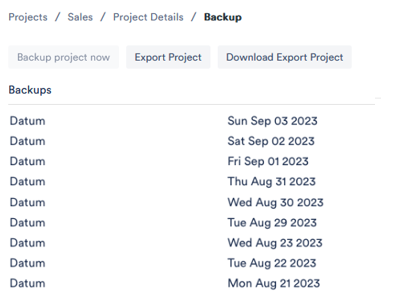
Click Backup project now. From this moment the backup function is activated and daily backups are created automatically. Under Backups you can see the backups already created with their dates.

More options
With Export Project you can download your project data as a ZIP, save it externally, share it with other users or import it as a new project. If you would also like to export all file attachments and emails as raw data, contact our support team – they will create a ZIP archive with all raw data. If you accidentally delete something, support will be happy to help too.
Job status and stopping a backup
The backup page shows every job with its status: queued, running, finished, failed or cancelled. Finished jobs offer the ZIP download.

A running or queued backup can be stopped. The job then ends at its next checkpoint – so you do not have to wait for an export you started by mistake to run to completion.
If individual files could not be read, Aktenplatz says so explicitly and names the count – the backup is usable, but not complete.
Besides the full backup, the same page can output individual data sets as a table: see Exporting data as CSV.