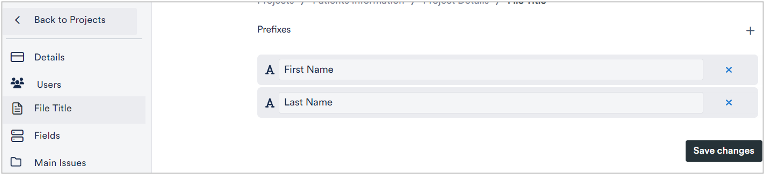
You can define the titles of your files individually. However, if you always follow the same scheme, it makes sense to set up the composition of the file titles in the settings. Sometimes it makes sense to display a first and last name, in other cases the name of a company, a city or a work area may make more sense.
To do this:
1. open the project’s settings page via the dark grey bar on the left and click on File Title.
The current composition of the title is displayed
To add a new title field:
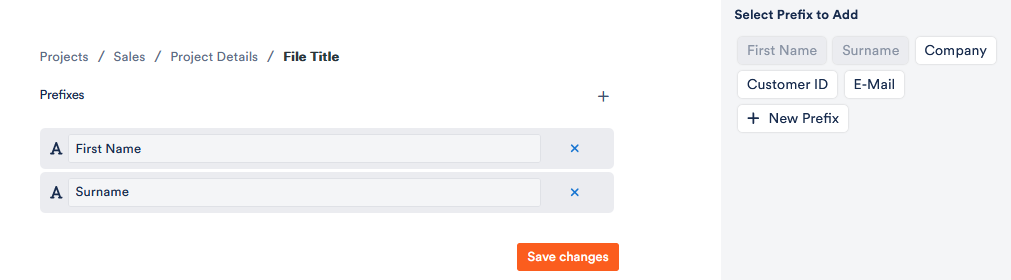
2. Click 
A window appears on the right-hand side. The fields already used for the file title are already marked. Depending on which (text) fields you have set up for your files, you can now select further elements for the file title. You can also create a completely new prefix.
3. Click on Save changes.
The entries in the corresponding fields now appear as file titles.
(Note that if you have previously entered an individual file title, it will appear in addition to these automatically generated titles).