Akenplatz offers you the possibility to record your working hours easily and accurately. Gone are the paperwork and calculations, the forgetting and reconstructing.
You will find the tool for time recording in the dark grey bar on the left edge. Before you start your work, the clock symbol appears in red.
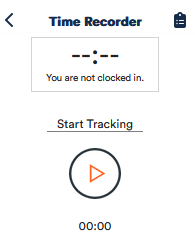
Click on it, then click on 
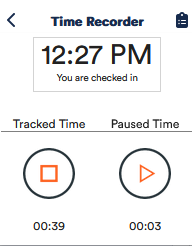
When you go on break, click on the
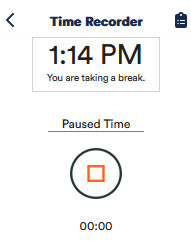
To end your break, click on the 
If you do not clock your breaks manually, they will be automatically registered according to the standards.
To say goodbye at the end of the working day, click on the
The striking colour of the time clock should make it easier for you not to forget to record your time. If you do forget, you can easily adjust your working time manually. Alternatively, you can also have Aktenplatz remind you to clock in every time you log in. You can find this option in your profile settings.
Click on the 
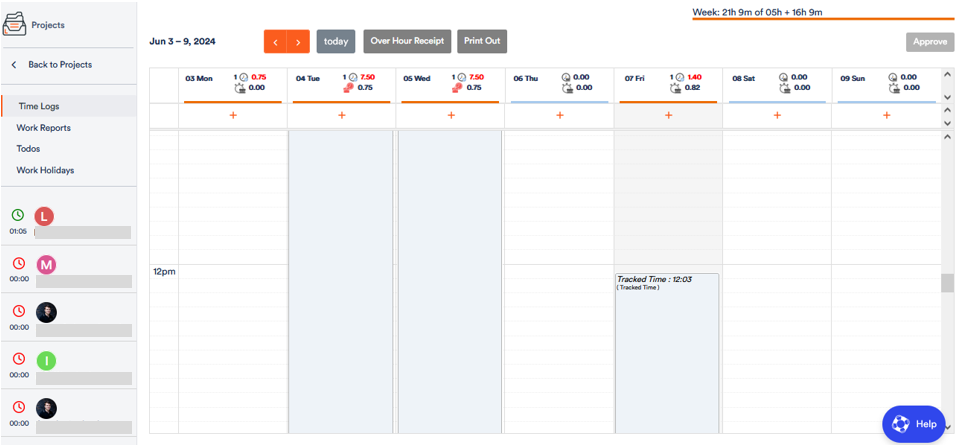
A weekly overview opens in which you can see your working hours.
You can switch between the weeks by clicking on these buttons:
To enter your working time manually, click on the plus below the desired date.
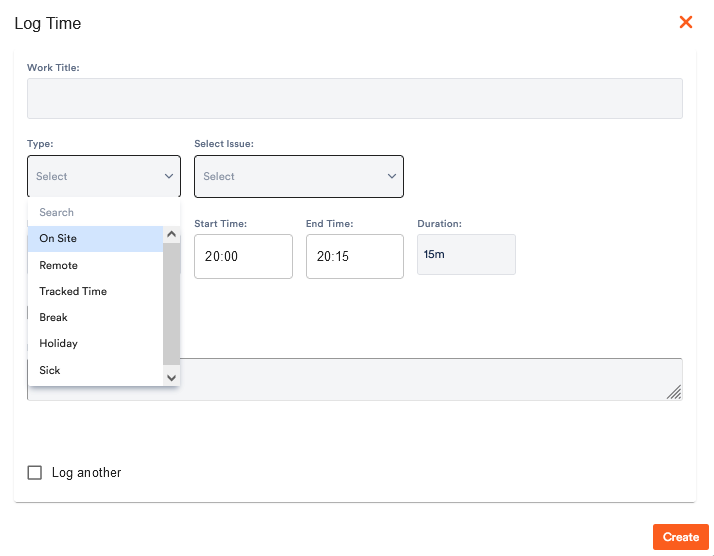
In the pop-up window you can now set the date and time and whether you worked at the office or from home. You can also register your holiday in this way.
If you forget to log off in the evening, the time clock will continue to run overnight. To correct the end of your working time manually, click on the entry in the overview and enter the correct time window. Then click on Update.