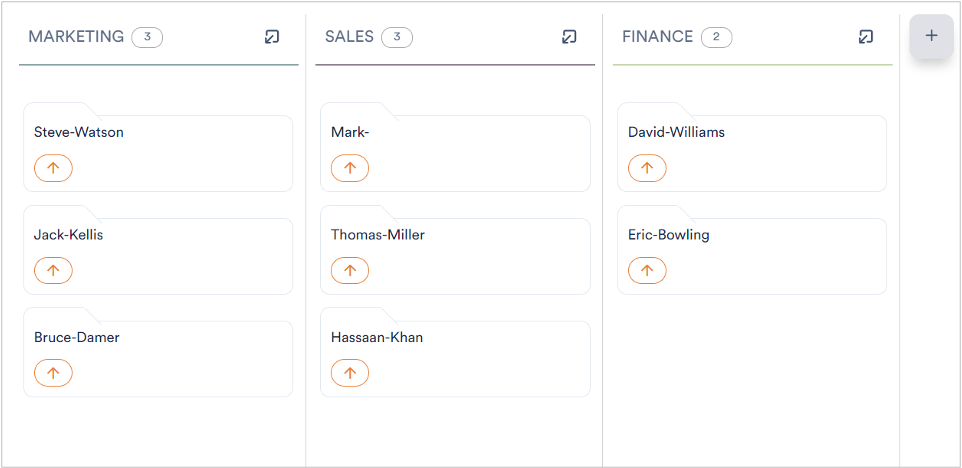
Aktenplatz lets you organize various files of a project under different trays. This means that you
can create as many trays as required and place the project files under them. For example,
suppose you are managing the records of the employees who are working in different
departments of the company. For this purpose, you can create a separate tray for each
department and organize each employee’s data under the tray designated to his/her
department.
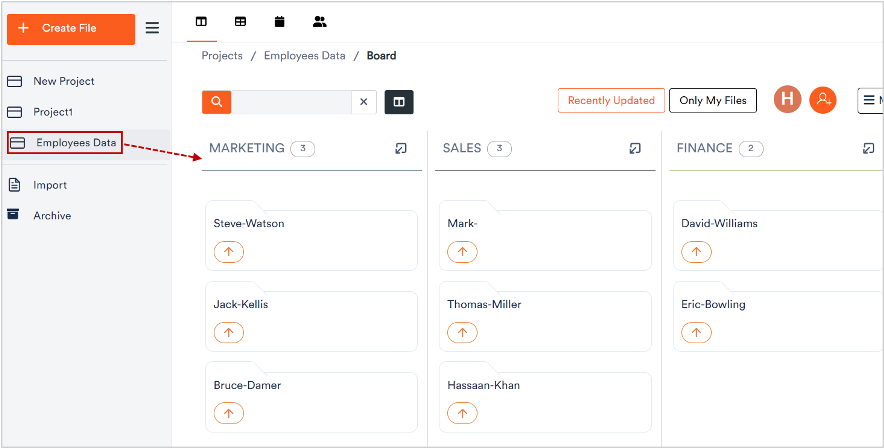
To access trays of a project:
1. Click a project to view its belonging trays.
The trays belonging to the selected project display.