You create a new contact directly in the Contacts area. Besides the name and notes, you can add many further details if needed.
1. Click “New Contact”
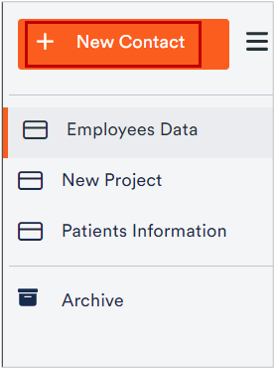
Open the Contacts area (contacts icon in the top bar) and click New Contact in the top left. The Add contact dialog opens.

2. Fill in the details

- Photo: Click the camera icon to choose a profile picture.
- First name / Last name: the contact’s name.
- Notes: additional information or remarks.
- + More (“Weitere”): click it to reveal further fields – e.g. email, phone, company, address, birthday, nickname.
3. Create
Click Create. The contact is created and appears in the contact list.