Aktenplatz already offers you the option of creating folders and uploading and downloading files there. This applies to the attachments of individual files as well as global files.
If you want to upload and download entire folders, here is a solution for you: the WebDav Client. Once set up, it allows you to easily manage large amounts of files and move them between Aktenplatz and your PC.
And: if you scan a document, you can store it directly in the right file with the WebDav client instead of first saving it somewhere on your device and then uploading it.
We have put together a step-by-step guide for you here. Otherwise, we will be happy to help you set it up.
To set up the client,
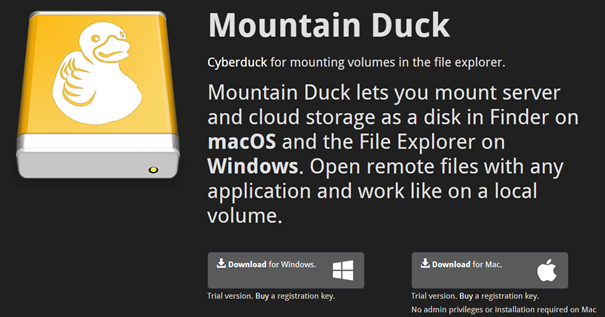
1. first install the Mountain Duck tool. We can provide you with a licence, otherwise, you can also try out the process with a test licence.
After the installation, a pop-up window opens automatically.
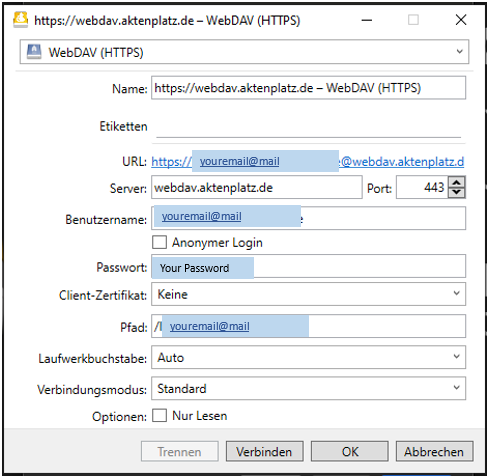
2. copy “https://webdav.aktenplatz.de – WebDAV (HTTPS)” into the “Name” line and “https://webdav.aktenplatz.de” into the “Server” line.
3. enter the email address with which you are registered at Aktenplatz in the username field. Also enter “/” followed by this email in the “path”-field, for example “/mariamustermann@firma.de”.
4. you can create the password at Aktenplatz in your user profile. Enter a password there under Update Password and save your changes. Enter the same password in the pop-up window.
5. you can leave the remaining lines as they are.
The window should then look something like this (though maybe not in German).
6. click on Connect/Verbinden.
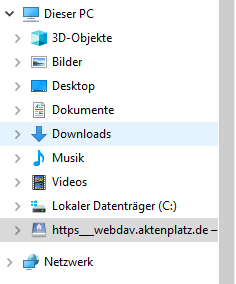
Once connected, a new network drive appears in your file explorer, in which all projects, files and attachments from Aktenplatz are listed:
7. Now you can download attachments of individual and global files collectively. You can also upload entire folders to these attachments. You can do this simply via copy-paste.
(Please note that you can change the names of individual files and folders, but not project and file titles – this is still only possible via Aktenplatz. Furthermore, you cannot simply upload attachments as files/issues or projects. If you want to create a file or project, you must first do this via Aktenplatz and can then add files there via the WebDav Client).
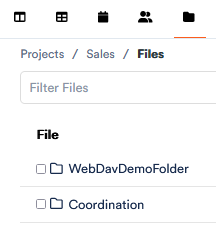
8. When you now open Aktenplatz, the folder that we uploaded under 7. appears in the appropriate place – in the global files in the project sales.
The client only downloads the files to your PC that you actually copy. So you won’t suddenly have your entire Aktenplatz on your device.
Once set up, this small detour is a great help in managing your files!