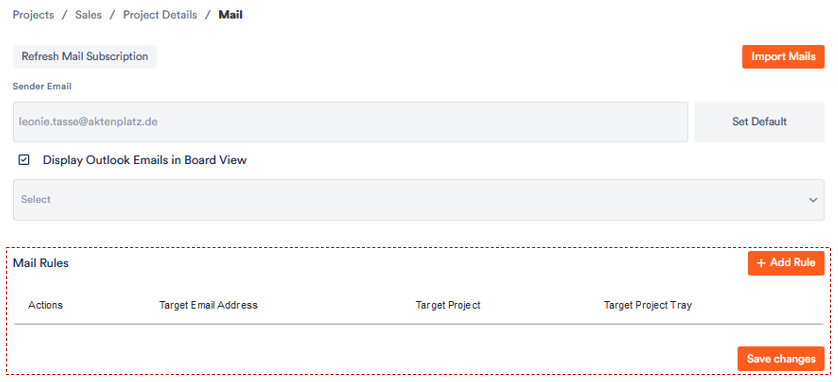
If you have linked different mail accounts with your Outlook account, for example your.name@company.com and marketing@company.com, you can sort the mails that arrive at these addresses separately, even into different projects. This is possible with the Mail Rules function under Mail in the project settings.
1. Click Add Rule. A dialogue box will open.
2. Select one of the mail accounts linked to your Outlook account and the project to which you want to link it.
3. If you activate “Display Outlook emails in Board View” in this window, also select the target folder in which the emails are to be displayed.
Repeat this step for the other mail accounts if necessary.
Furthermore, you can snyc different Outlook-accounts to different Aktenplatz-Projects.