Aktenplatz lets you create and manage as many projects as you need and use them as a team. Your new project is ready in a few steps:

1. Open “Create project”

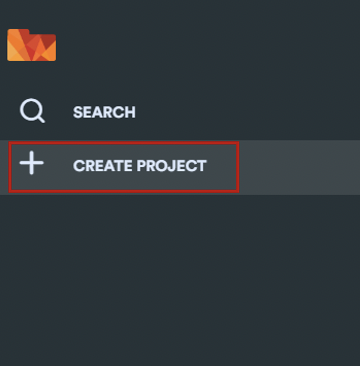
Move your mouse over the dark grey bar on the left – it expands. Click the + icon (“Create project”).

The highlighted plus icon for creating a project in the left bar

2. Choose a template

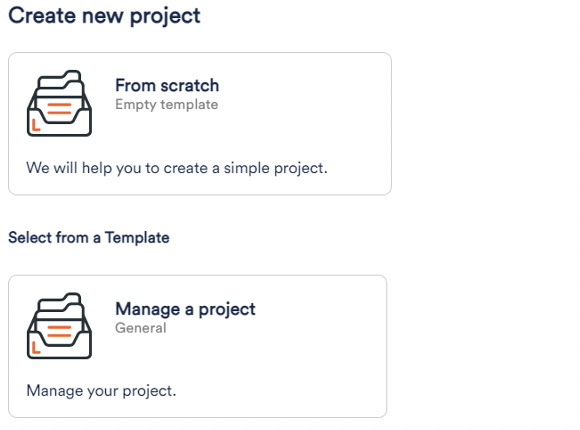
The “Create new project” dialog opens. Choose “From scratch” for an empty project – or start from a ready-made template (e.g. Mail Organisation, Payroll tax help, Telephone and office service, Manage a project). Under “Other Templates” you can also duplicate an existing project or import an exported one.

Choosing a project template – “From scratch” is highlighted

3. Name and create the project

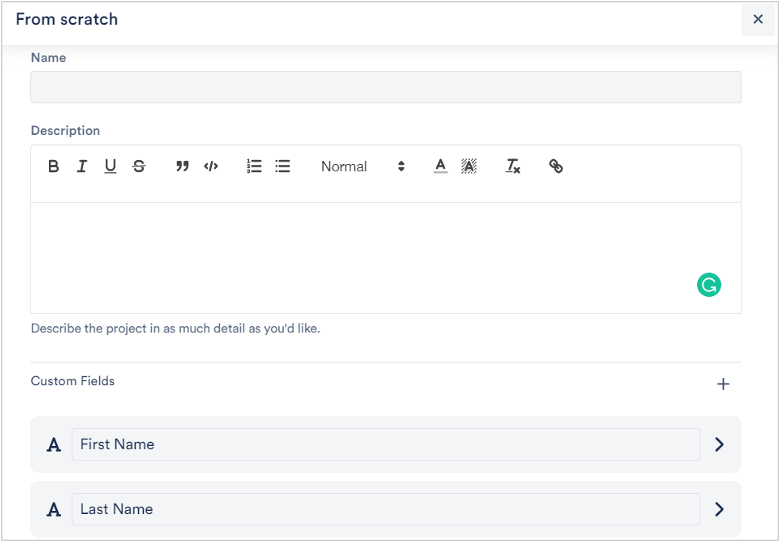
Enter a Name (“Demo Project” in the example) and, optionally, a Description. Under “Custom Fields” you define which information your files should capture (e.g. first name, last name, company). You can add, edit and reorder fields by drag-and-drop. Finally, click “Create”.

The project form with a name entered; the “Create” button is highlighted

4. Invite your team

To let your team collaborate, open the project settings and go to “Users”. Click the + next to your name. In the “Add people” dialog, enter the e-mail address and pick the role (owner, guest or “file-attachments only”). Use “Add More User” to invite several people at once. Clicking “Save” sends the invitation by e-mail.

The “Add people” dialog with an e-mail address and role selection

5. Open the project

Your new project opens straight away in the board view – still without any trays. The groundwork is done: next, create your first tray to organise your files.

The newly created, still empty project in the board view