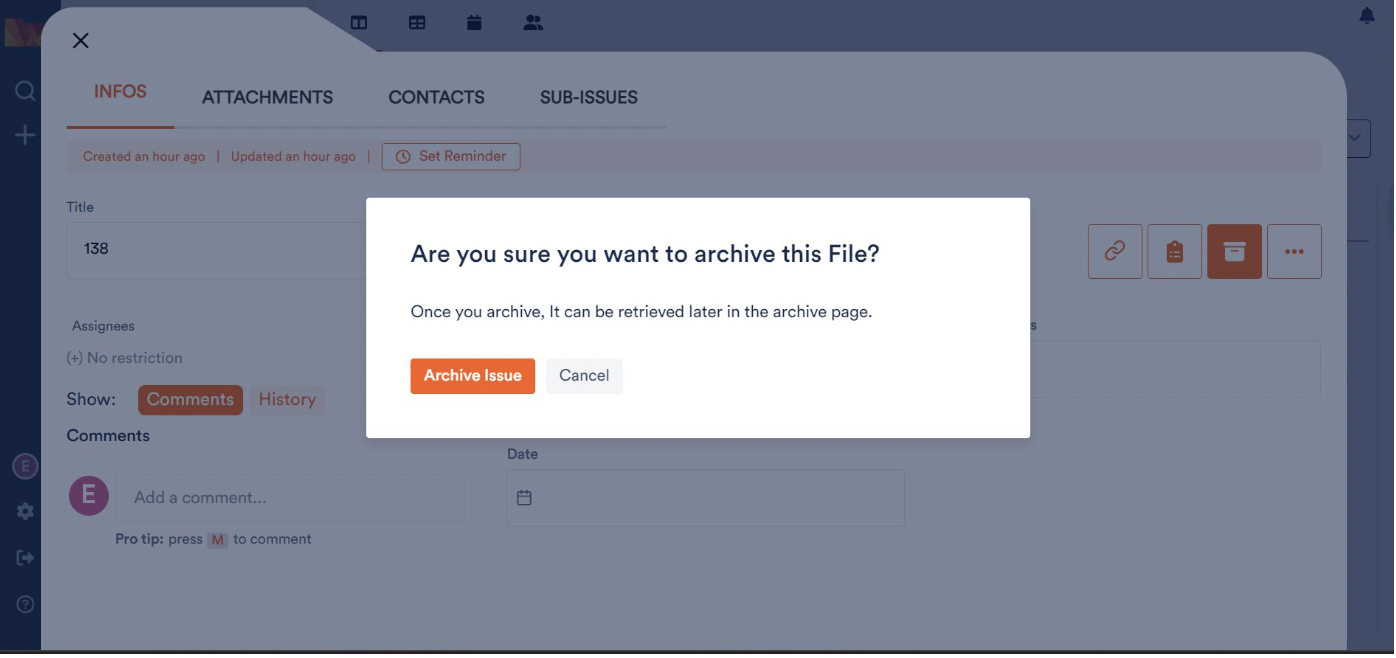
Archived files disappear from the board but are not lost. You can find them at any time in the project’s Archive and restore them to their original tray with a single click.
1. Open the Archive
Expand the project sidebar on the left and click Archive below Import.

2. View archived files
The archive lists all archived files in a table showing the update date, title, original tray, priority and assignees. Use the search field at the top to locate a specific file.

3. Restore a file
Click the file you want – its details open. In the toolbar at the top right, click the restore icon (the circular arrow) and confirm with Restore File Card in the dialog.

The file then reappears in its original tray on the board.