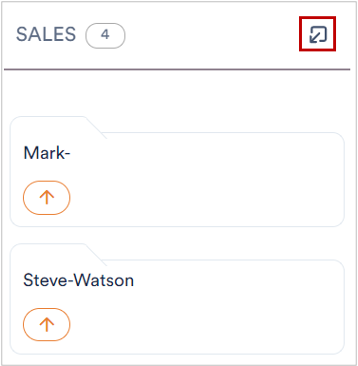
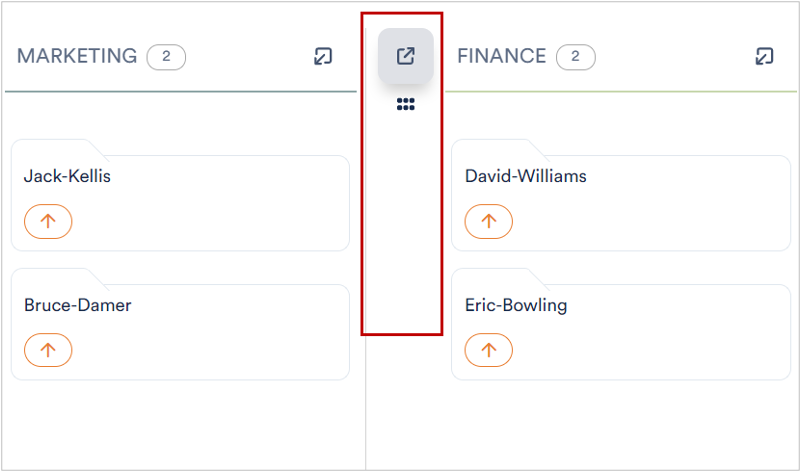
If you do not need a tray for a while, you can hide it. It disappears from the board without being deleted and can be shown again at any time.

1. Open the column selection

Above the board, click the columns icon (next to the search field). The “Select Columns to Hide” selection opens.

The highlighted columns icon above the board

2. Hide or show a tray

Next to each tray there is an eye icon. Click it to hide the tray – the eye is crossed out and the column disappears from the board. Clicking it again shows the tray again.

The column selection with a highlighted eye icon for hiding

3. Result

The hidden tray (“Finance” in the example) is no longer shown on the board. Your selection is kept until you change it again.

The “Finance” tray is hidden and has disappeared from the board