On the project settings’ Mail page you configure all of the project’s email functions and interfaces. The page is split into four areas: General, Mail imports, Mails in records and Interfaces.

1. Open the mail settings

Open the project settings via the gear icon and click Mail on the left under Interfaces. Every section can be expanded and collapsed.

2. General: sender address & custom SMTP

In the General section you set the Sender Email used for the project’s outbound mail and in the board view (with Reset and Save changes).

Under Custom SMTP you can optionally configure your own outbound server for this project – with Host, Port (default 587), Username, Password, From email, From name and Reply-To.

The “General” section with the sender address and the custom SMTP server

3. Mail imports: project email addresses

Under Project email addresses you generate project-specific receiving addresses. Choose a Target folder and click Generate email. Mails sent to that address are automatically filed into the selected folder of the global files – without a folder they go to the Mails root folder.

Under Allowed senders you maintain a whitelist (required): only mails from these sender addresses are received via the project address – with no entries nothing is imported. Per sender you can optionally choose a target folder.

Generating project email addresses and the “Allowed senders” whitelist

4. Mail imports: external mail accounts (IMAP, POP3, M365 journal)

Via External mail accounts you connect existing mailboxes. Click Add and choose the connection kind in the Type field – IMAP, POP3 or M365 Journal Inbox. Then enter the credentials (host, port, username, password, SSL if needed) and check them with Test connection.

Connecting external mailboxes – connection type IMAP, POP3 or M365 Journal Inbox

M365 journal mail connection

With the M365 Journal Inbox type you connect a Microsoft 365 journaling mailbox. With journaling (a journal rule in Microsoft 365 / Exchange), a copy of every inbound and outbound message is automatically sent to a central journal mailbox. Connecting that mailbox to Aktenplatz captures the entire relevant mail traffic completely and in an audit-proof way – regardless of which employee sent or received the mail.

The “Add mail account” dialog with the “M365 Journal Inbox” connection type

MailStore Gateway as a possible connection: alternatively you can use the free MailStore Gateway. It receives the journaled messages (e.g. via SMTP) and exposes them via IMAP/POP3 – Aktenplatz then connects to that gateway using the IMAP or POP3 type.

To set up a journal mailbox, our support team is happy to help – just contact support@aktenplatz.de.

5. Synchronise a Microsoft 365 / Outlook mailbox

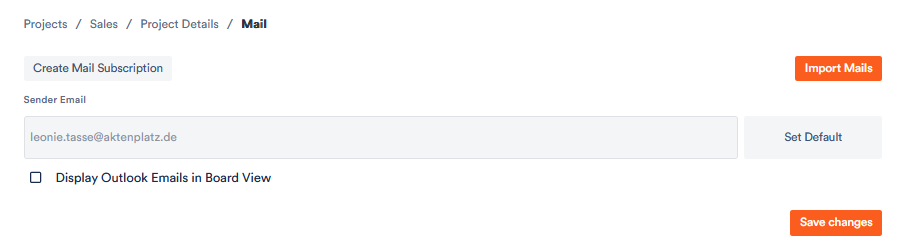
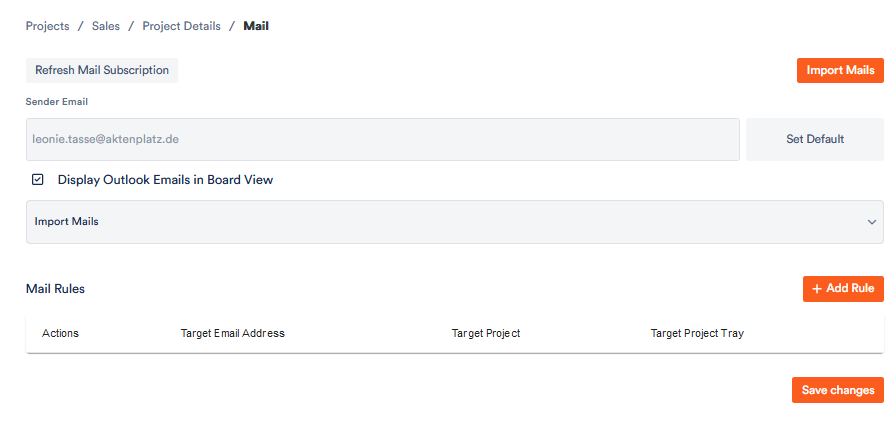
Once you have linked a Microsoft 365 / Outlook account to the project (via Office synchronization), you can create an email subscription and import your mails automatically. After the first import, further imports usually run automatically. If it doesn’t run automatically, trigger it manually via Import mails; if you changed your Outlook password, click Refresh email subscription.

6. Mails in records: assignment, filters & attachments

In the Mails in records area you control how incoming mails are processed:

  • Mail Assignment Settings – rules by which incoming mails are automatically assigned to records and columns (details in Mail Assignments).
  • Fast Filters – predefined filters that can be quickly selected in the mail view (see Fast Filters).
  • PDF attachments of filtered mails in File Cards – toggle whether PDF attachments (or other file types) of filtered mails are automatically added to the record – directly or into a subfolder.
  • Filter attachments in global documents – all mails are still imported; here you choose via Off, Allow list or Deny list which receiving addresses show their attachments in the global documents.
Adding PDF attachments to records and filtering attachments in global documents (Off/Allow/Deny list)

7. Interfaces: DATEV mail dispatch

Under Interfaces you find DATEV mail dispatch. With Execute datev mail you manually trigger the DATEV daily mail run for this project. Normally this runs automatically once a day.

The “DATEV mail dispatch” interface with a manual daily run

Switching external mail accounts off temporarily

Under Mail imports → External mail accounts, every connected IMAP account can be deactivated and later activated again – handy when a mailbox should not be polled for a while, without deleting the credentials.

Aktenplatz also switches an account off by itself when it stays unreachable, and states the reason right in the account:

  • Sign-in failed: the credentials no longer work – check the user name and password.
  • Server unreachable several times: check the server, port and encryption settings.

Once the cause is fixed, simply activate the account again.