You have the option to move a file from one project to another one.
To do so:
1. Click a file to view its parameters.
A dialog displays showing the information related to the selected file.
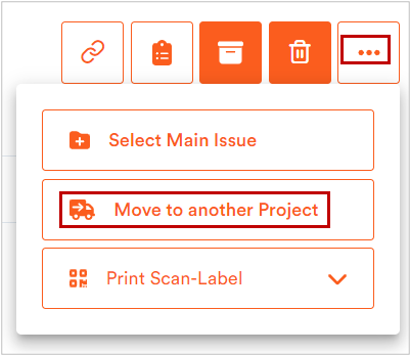
2. Click 
A dropdown displays.
3. From the dropdown, click Move to another Project.
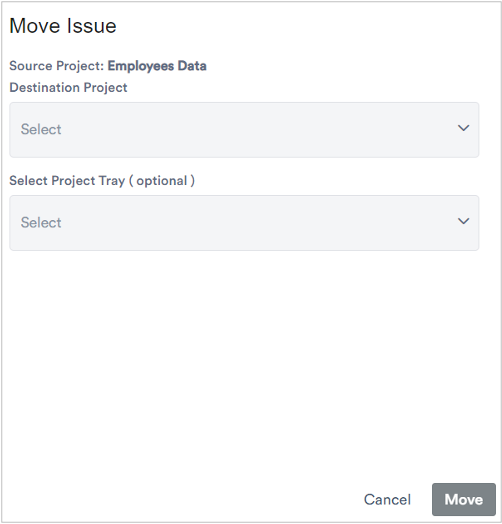
The Move Issue dialog displays.
4. Specify the following parameters in this dialog.
5. After specifying the above parameters, click Move.