You have the option to attach additional documents to a file.
To do so:
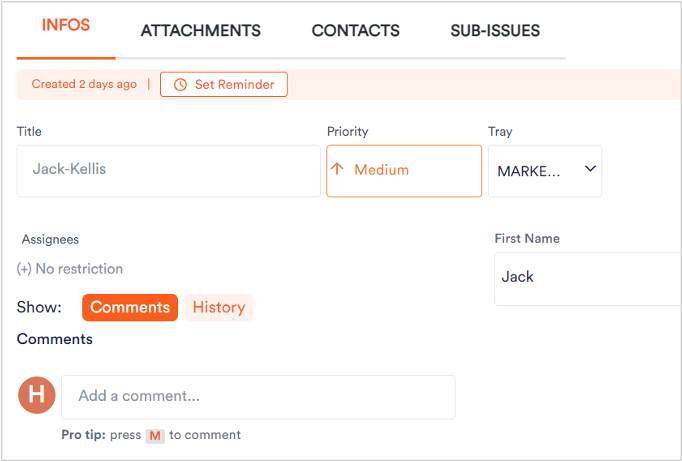
1. Click the file to view its parameters.
2. Click on the Attachments tab.
3. In Attachments section, click either Upload, to upload an existing elelment to Aktenplatz.

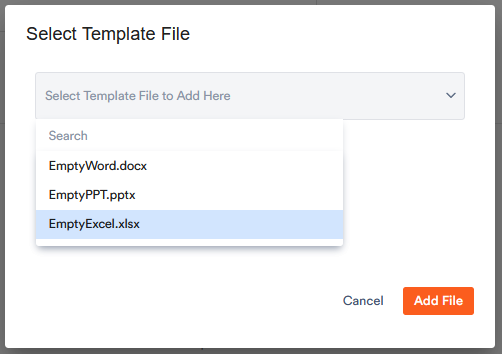
4. Alternatively, add a new element by clicking on New File and choosing the desired format. You can also work with your own customized templates.
After adding a new document, click on it to rename, edit and work on it. Furthermore, you can assign tasks to a specific document.