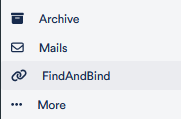
Scans will initially land in the project’s global files. A digital pile of documents can quickly accumulate there. The FindAndBind function allows you to sort these into various files with just a few clicks.
Based on OCR (automatic text recognition in PDF and image files) and keywords defined by you, the corresponding files are suggested for each scan, and with a single click, you can accept the sorting suggestion.
Here’s how it works:
Click on FindAndBind in the light gray bar.
Select a file from the menu and add relevant keywords, such as a customer number or a company name. If documents already exist that match these criteria, they will be suggested to you on the right:
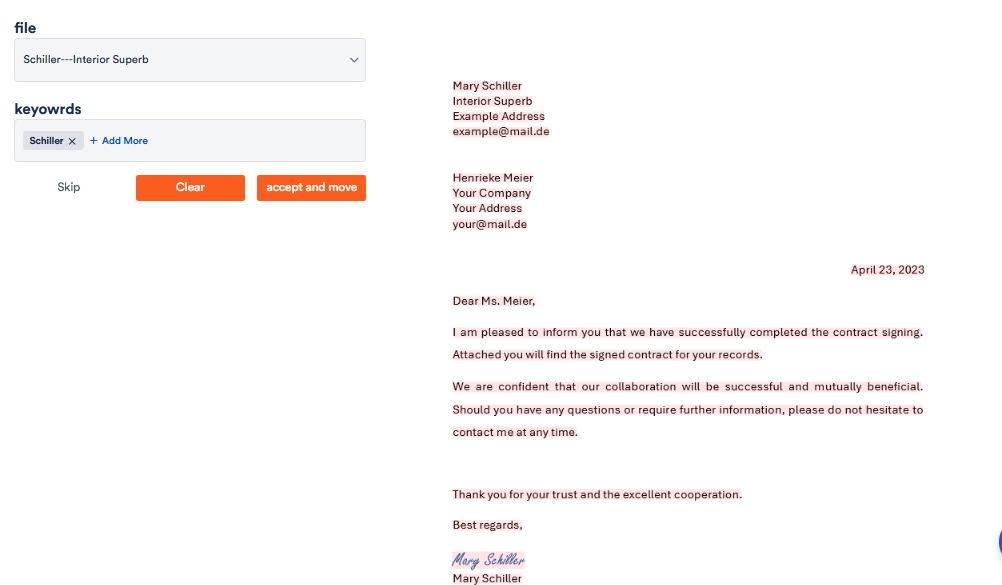
Click accept and move to move them to the corresponding file, Skip if you want to leave the document in the global files for now, or Clear to reset the FindAndBind and repeat the process for a new file.
Of course, you can still manually move global files into specific files.
The pilot does not work without your instructions. You must always confirm the move.
The first time you move a document with the pilot, a corresponding FindAndBind Rule is created:
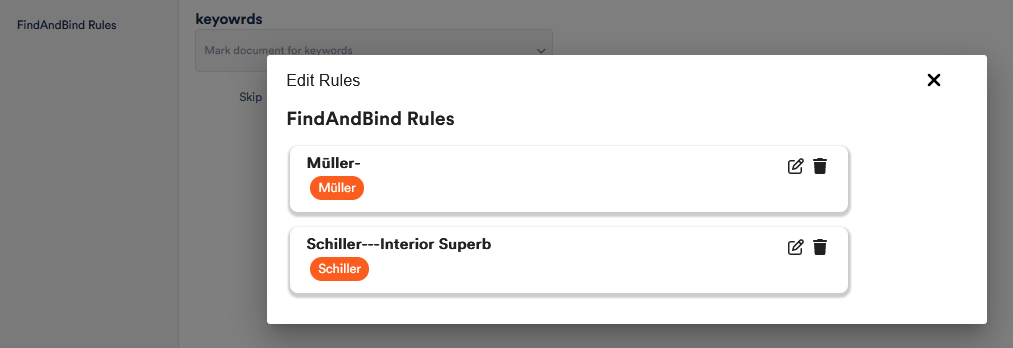
By clicking the 

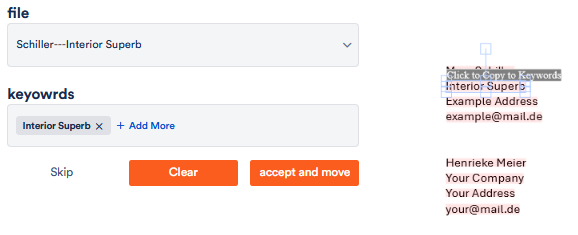
Furthermore, once a document is suggested to you on the right, you can click on elements and add them as keywords: