Aktenplatz lets you create and manage all events, meetings, etc through the Events section. The procedure for creating an event is as follows:
1. Click on a project.
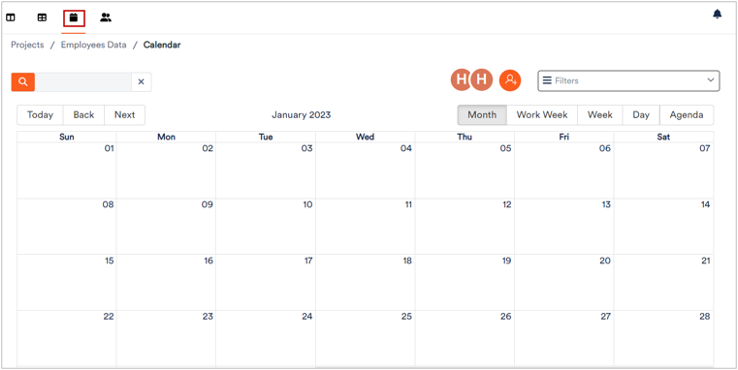
2. Click 
A calendar displays where you can view your events and appointments.
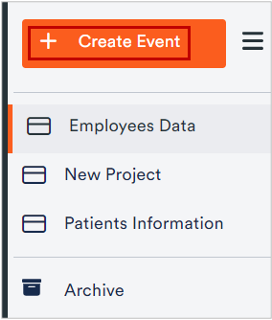
3. To create a new event, click Create Event.
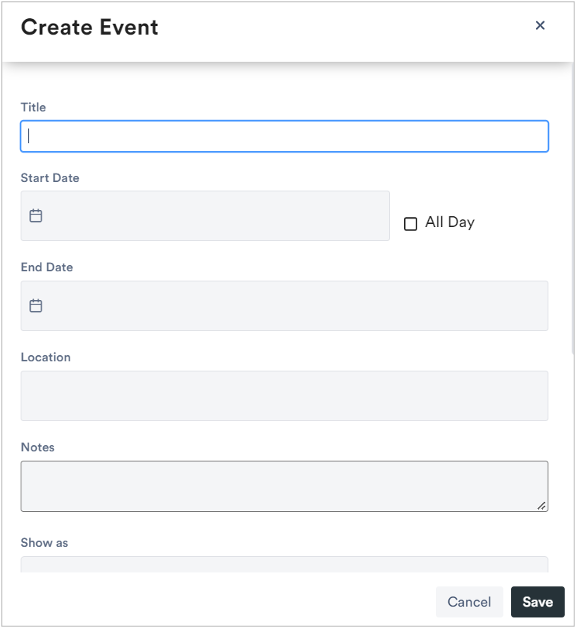
The Create Event dialog displays.
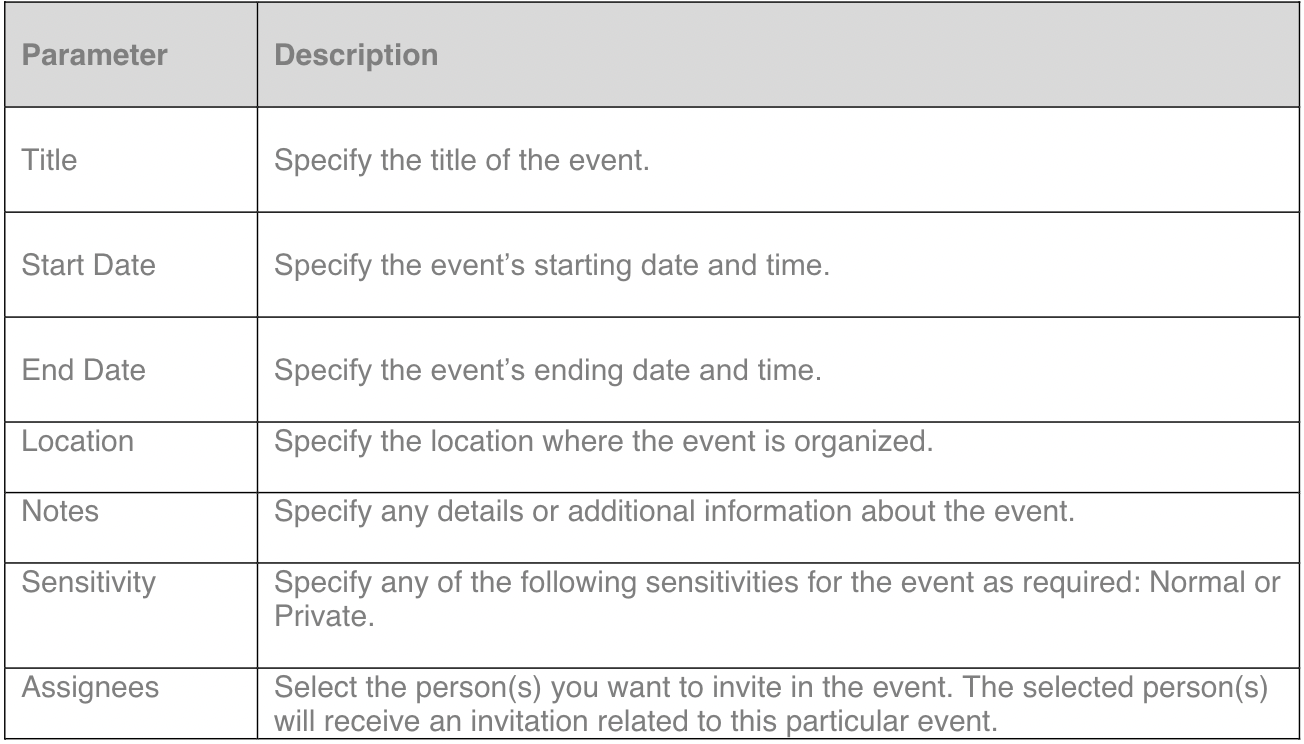
4. Here, you can specify the following parameters:
If you have already added categories, such as “meeting”, “telcom”, or “external”, you can sort your appointments and events accordingly.
5. Click Save.
The event creates with the specified parameters.